Customer dashboard
TL;DR - Drilling into a customer gives you their balance, virtual account coordinates, recent transactions, and KPIs - everything you need to fund the customer or send a payment without leaving the page.
How to get there
From the customers list, click any row. The dashboard scopes every section to that single customer.
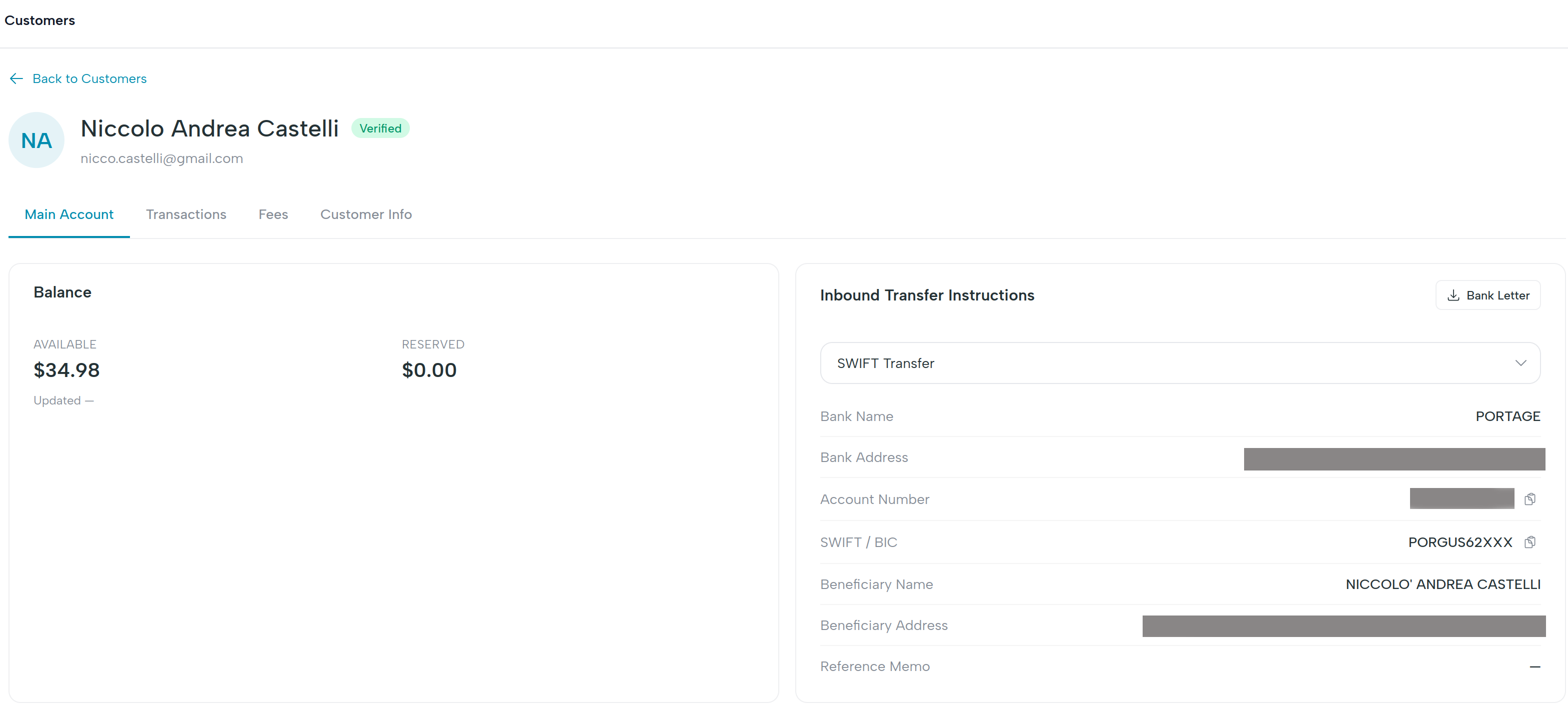
What's on the page
Header
- Customer name and type badge (
business/individual). - Status pill - see KYC / KYB status.
- Quick-action buttons: Send fiat payout, Send crypto-to-fiat payout.
Buttons are disabled if the customer's status doesn't allow that action (e.g. payouts disabled while
verifying). Top-ups live on the Operations page, not here.
Balance card
Large card showing the current available balance in USD, plus any reserved amount (funds locked by an in-flight transaction). Click the card to open the virtual account detail.
Virtual account coordinates
A panel listing the customer's deposit details - beneficiary, bank name, routing number, account number, SWIFT/BIC, address, and reference / memo - each with a copy button. This is what you share with the customer when they want to top up. See Top up a customer for the full walkthrough.
Tabs
The page has two tabs:
- Main Account - balance card, fiat virtual account coordinates, recent transactions, KPI strip.
- Crypto Accounts - the customer's saved crypto wallets, each paired with a crypto VA. Add a new destination here to enable on-ramp. A wallet shows a Provisioning badge while its crypto VA is still being allocated; click it to see the bank coordinates once it activates.
Recent transactions
A scoped list of this customer's most recent transactions. Click View all to open the transactions page pre-filtered to this customer.
KPI strip
Compact cards summarizing the customer's recent activity:
- Volume (30d) - total payout volume in the last 30 days.
- Payouts (30d) - count of payouts initiated in the last 30 days.
- Open balance - same as the balance card, repeated for at-a-glance view.