Invite operators
TL;DR - Open Platform Users → Invite User, enter their email and name, pick View or Operate, and submit. They get an email link, set a password, enrol TOTP, and land on the dashboard.
Who can invite
Any admin or operate user can invite a new operator. View users cannot.
Step-by-step
1. Open the Platform Users page
In the left navigation, go to Platform Users. You'll see the list of operators already on your fintech, with their email, name, role, and status.
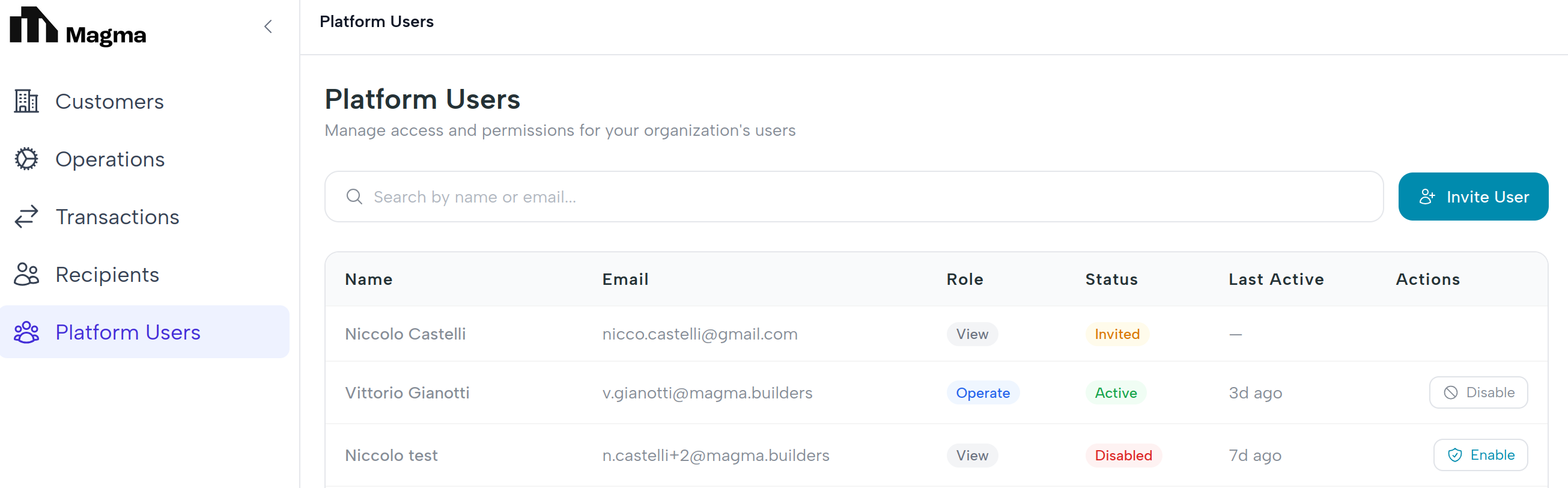
2. Click Invite User
A modal opens with three fields and a permission selector.
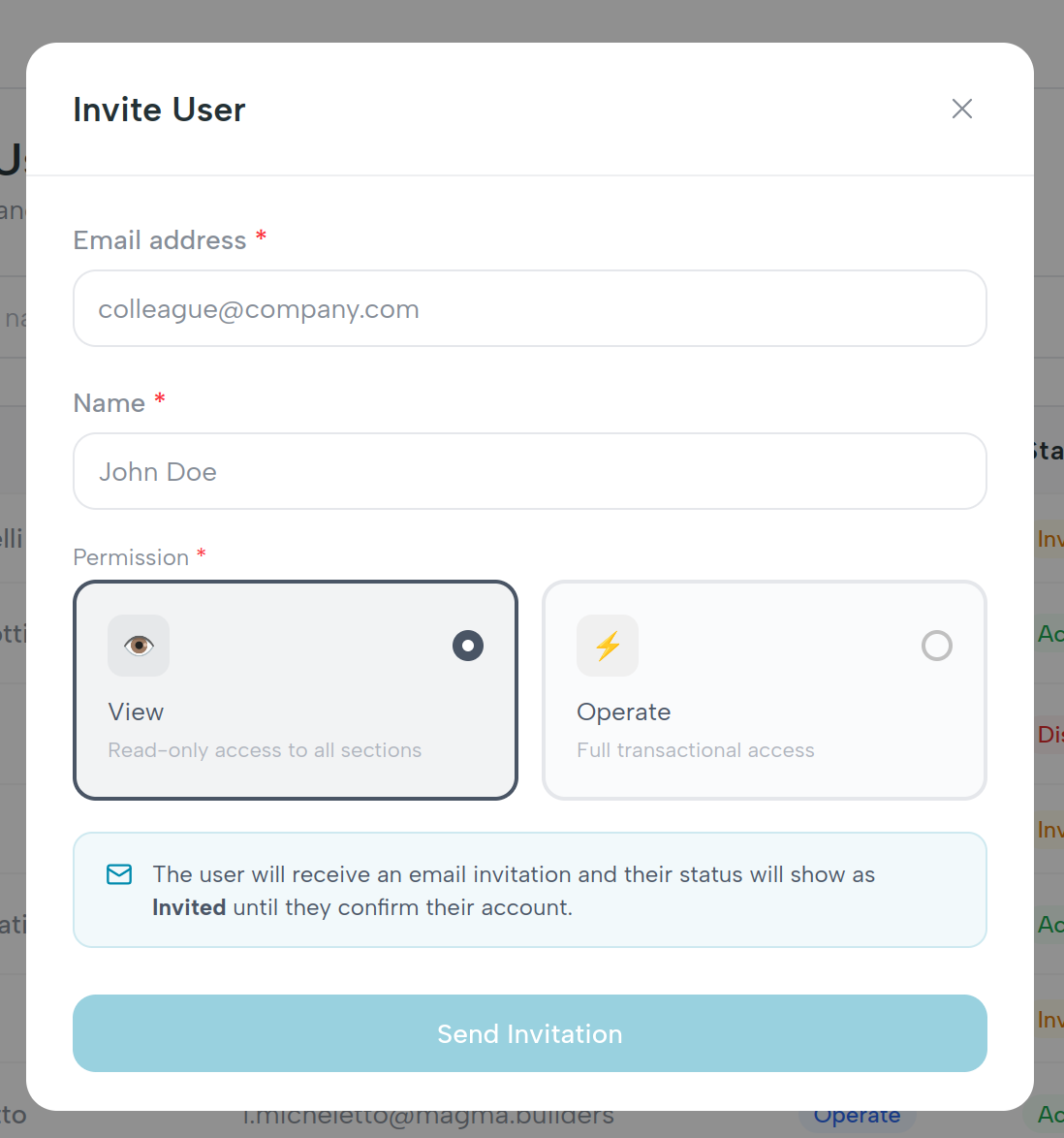
3. Fill in the details
| Field | Notes |
|---|---|
| The address the invitation will be sent to. Must be a valid email format. | |
| Name | The operator's display name (2–50 characters, required). |
| Permission | Two radio cards: View or Operate. See Roles & permissions. |
Errors appear inline after you tab out of a field. Submit is disabled until all three fields are valid.
4. Submit
You'll see a green toast: "Invitation email sent to invited.

What the invitee sees
They receive an email titled "You've been invited to…" with a sign-in link. From there they:
- Set a password (or use SSO if your fintech has it enabled).
- Enrol an authenticator app for TOTP.
- Land on the customers list.
The full walkthrough is in Your first login.
After they accept
The status badge in the team list flips from invited to active. From
there you can disable or re-enable them at any time - see
Manage your team. Roles are fixed at invite time and
cannot be changed afterwards in v1.
What happens behind the scenes
When you click Invite User, the dashboard calls
POST /api/v1/operators/invite with email, name, and role. Magma
provisions the user record in its users table and asks Keycloak to send
the invitation email. The Keycloak user ID is stored on Magma's user record
so we can join identity data to app data later. See
API reference for the full endpoint surface.